This is the multi-page printable view of this section. Click here to print.
Integration
1 - External Integrations (A.K.A. Agents)
Navidrome uses external services (through agents) to enrich your music library with artist biographies, images, album covers, similar artists, and more. Multiple agents can be configured, and they are tried in priority order. If one fails or returns no results, the next one is tried.
How Agents Work
The Agents config option controls which agents are enabled and in what order. It accepts a comma-separated list of agent names.
The default is "deezer,lastfm,listenbrainz", meaning Deezer is tried first, then Last.fm, then ListenBrainz. A built-in local agent is always appended automatically as a final fallback.
To disable a specific agent, either remove it from the Agents list or set its individual *.Enabled option to false. To disable all external integrations at once, set EnableExternalServices to false.
Last.fm
Last.fm provides the broadest set of metadata among the built-in agents.
Provides: Artist biographies, artist images, similar artists, top songs, album covers, similar songs
Configuration: Requires API keys. Set the
config options
LastFM.ApiKey and LastFM.Secret. You can obtain these values by creating a free API account in Last.fm:
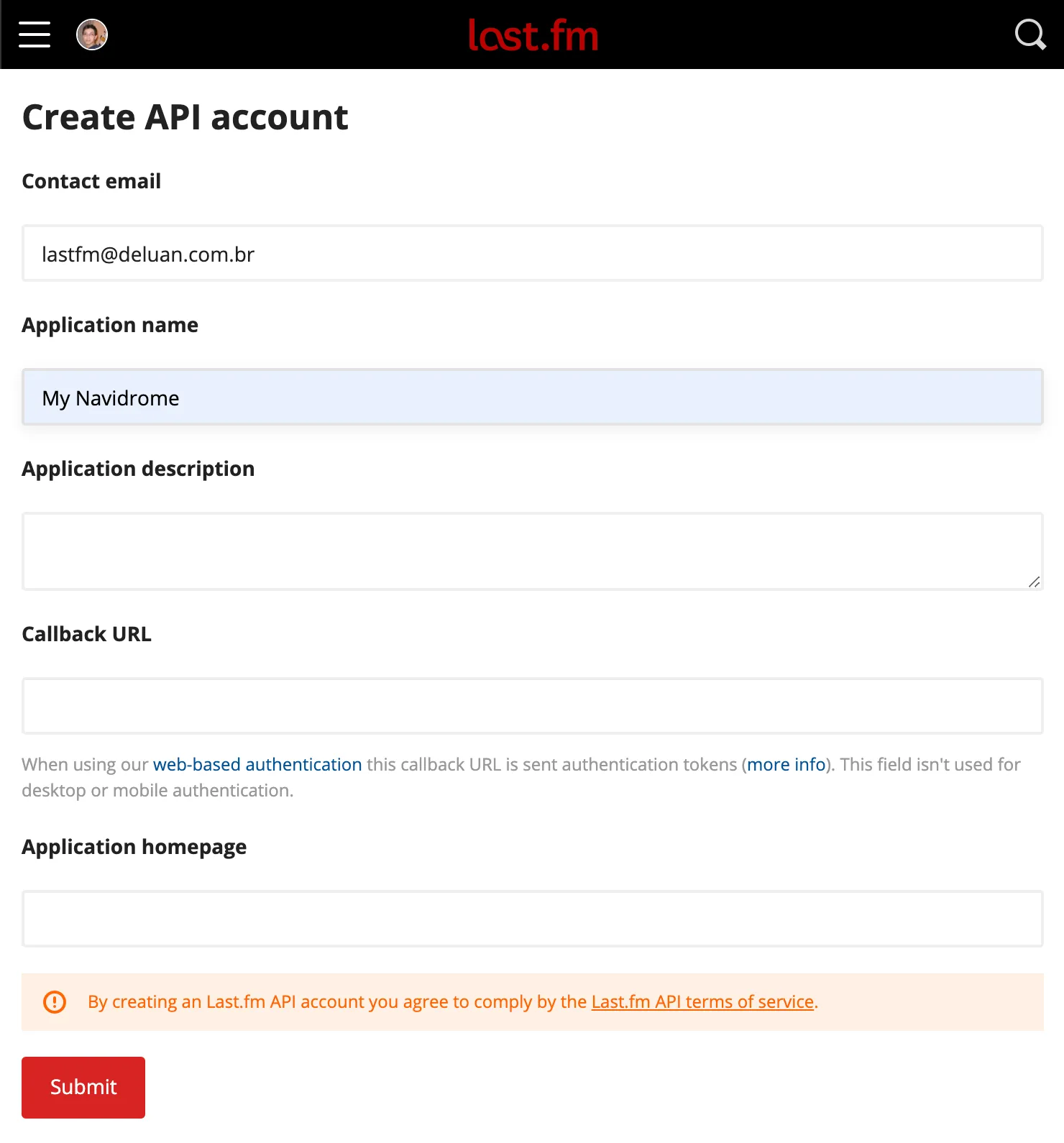
- Go to https://www.last.fm/api/account/create and create an API account. Only the Application Name field is mandatory:
- After submitting the form, you can get the API Key and Shared Secret from the Account Created page:
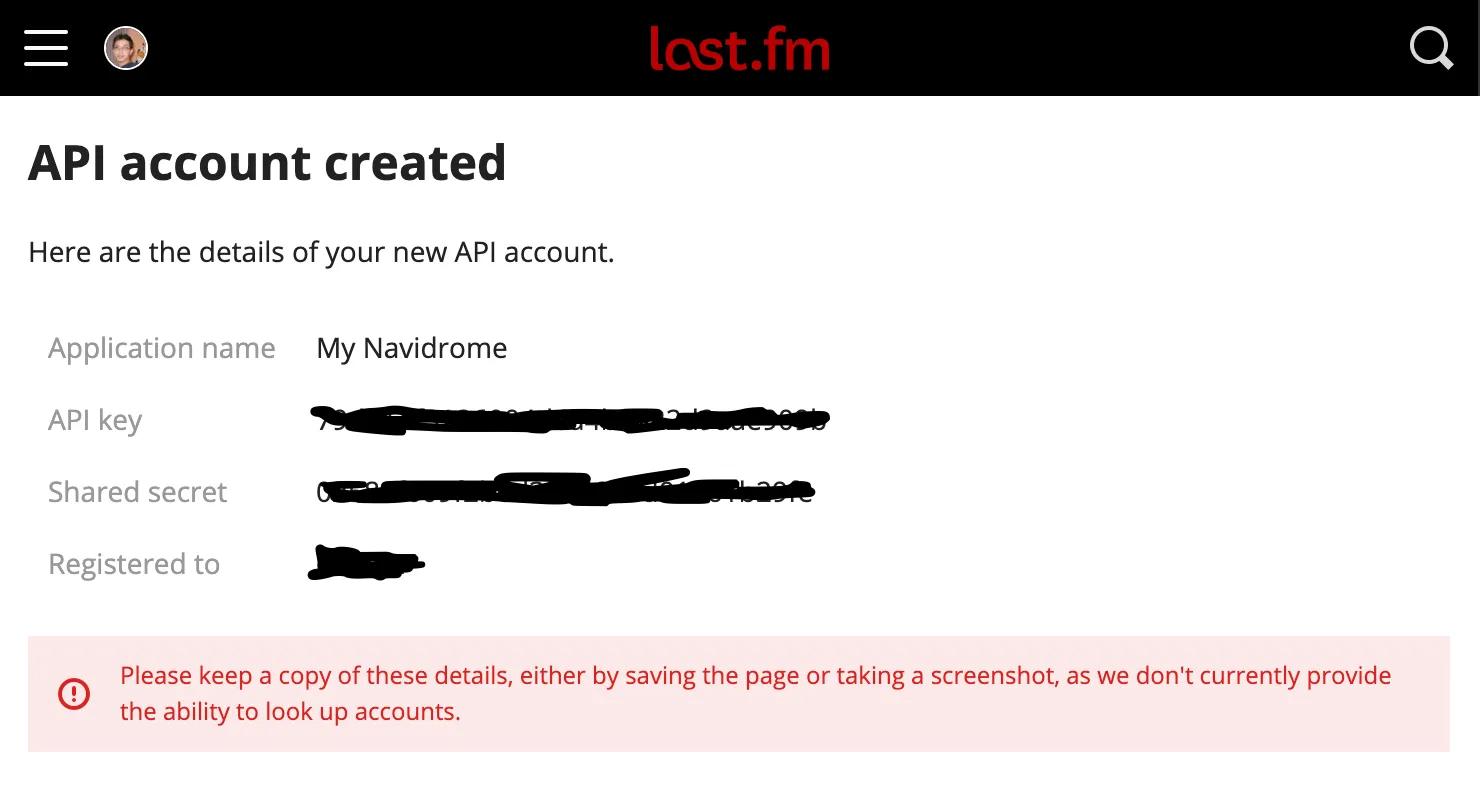
- Copy the values above to your configuration file as
LastFM.ApiKeyandLastFM.Secret(or set them as environment variablesND_LASTFM_APIKEYandND_LASTFM_SECRET) - After the configuration is done, you can set up scrobbling for your user.
Last.fm can be completely disabled by setting LastFM.Enabled to false.
Deezer
Deezer’s public API doesn’t require API keys or authentication, making it the simplest external integration.
Provides: Artist images, artist biographies, similar artists, top songs
Configuration: Enabled by default, no setup required. To disable it, set Deezer.Enabled to false in your configuration file or set the environment variable ND_DEEZER_ENABLED to false.
ListenBrainz
ListenBrainz provides metadata based on MusicBrainz data and community listening statistics. It works best when your music files have MusicBrainz IDs in their tags.
Provides: Artist URLs, similar artists, top songs, similar songs
Configuration: Enabled by default, no setup required for metadata. To disable it, set ListenBrainz.Enabled to false.
ListenBrainz also supports scrobbling, which requires per-user authorization.
Local Agent
The local agent is always active and serves as the final fallback. It provides top songs based on your own library’s play counts and ratings. No external service is contacted.
Extending with Plugins
Navidrome’s external metadata capabilities can be extended through plugins. Plugins can provide additional metadata agents for artist and album information and images, lyrics providers, and scrobblers. See the Plugins documentation for more information.
One example is AudioMuse-AI, which provides similar songs and artists based on sonic analysis of your own files, powering Instant Mix and similar-song features without relying on external metadata services.
2 - AudioMuse-AI
AudioMuse-AI is a self-hosted service that analyzes the actual audio content of your music library — tempo, timbre, energy, and other sonic characteristics — and uses that analysis to find songs that sound similar. Unlike the external metadata agents, which rely on third-party databases like Last.fm or Deezer, AudioMuse-AI works entirely from your own files, so it can find matches even for obscure or unreleased music.
It integrates with Navidrome through a plugin, the AudioMuse-AI-NV-plugin. Once set up, you get:
- Instant Mix in the Navidrome web UI: open any song’s context menu and build a queue of sonically similar tracks
- Similar songs and similar artists in Subsonic clients such as Symfonium, Feishin, Substreamer, Tempus, and Wavio, through the standard
getSimilarSongs/getSimilarSongs2(songs/radio) andgetArtistInfo/getArtistInfo2(related artists) endpoints - The OpenSubsonic
sonicSimilarityextension, which clients can use to fetch sonic matches and build song-to-song transitions
Third-Party Project
AudioMuse-AI and its Navidrome plugin are developed and maintained by the community, not by the Navidrome team. Review their documentation and source code before installing, and report issues with them in their own repositories.Requirements
- The latest versions of all three components, kept aligned: Navidrome, the AudioMuse-AI core, and the Navidrome plugin. A version mismatch is the most common cause of problems, so always update the three together.
- Docker and Docker Compose for AudioMuse-AI (or one of its native builds).
- Navidrome and AudioMuse-AI must be able to reach each other over the network.
Step 1 — Deploy AudioMuse-AI
AudioMuse-AI runs as a small stack: a web app, a worker, PostgreSQL, and Redis. The provided Docker Compose file wires all of this for you — normally you only set the database credentials and timezone in its .env file. Follow the deployment instructions in the AudioMuse-AI documentation. If you prefer not to use Docker, there are native builds for Linux, macOS, and Windows on their releases page.
Once the stack is running, open the AudioMuse-AI web interface (port 8000 by default). The Setup Wizard appears on first start:
- Pick Navidrome as the media server and enter your Navidrome URL, user, and password.
- In the AudioMuse-AI authentication section, set a username, password, and API token. You will need this token later to configure the plugin.
- Save and finish the wizard.
Then run a first analysis before anything else: AudioMuse-AI can only find similar songs after it has analyzed them. Start a new analysis from its main page and let it finish — this can take a while on a large library. When it is done, confirm it works by using Similar Song on any track in the AudioMuse-AI UI.
Step 2 — Configure Navidrome
Make sure the plugin system is enabled (it is by default), and add audiomuseai to your Agents list. The order matters: Navidrome uses the first agent that supports sonic similarity, so keep audiomuseai first.
services:
  navidrome:
    image: deluan/navidrome:latest
    ports:
      - "4533:4533"
    environment:
      - ND_PLUGINS_ENABLED=true
      - ND_PLUGINS_AUTORELOAD=true
      - ND_AGENTS=audiomuseai,lastfm,deezer
    volumes:
      - ./data:/data
      - /path/to/music:/music:ro
Step 3 — Install the plugin
- Download the latest
audiomuseai.ndpfile from the plugin releases page. - Copy it into your Navidrome plugins folder (
<DataFolder>/pluginsby default). - Restart Navidrome, or click “Rescan” in the Plugins section of the web UI (with
Plugins.AutoReloadenabled, the plugin is picked up automatically).
See Installing Plugins for details on the general installation flow.
Step 4 — Configure the plugin
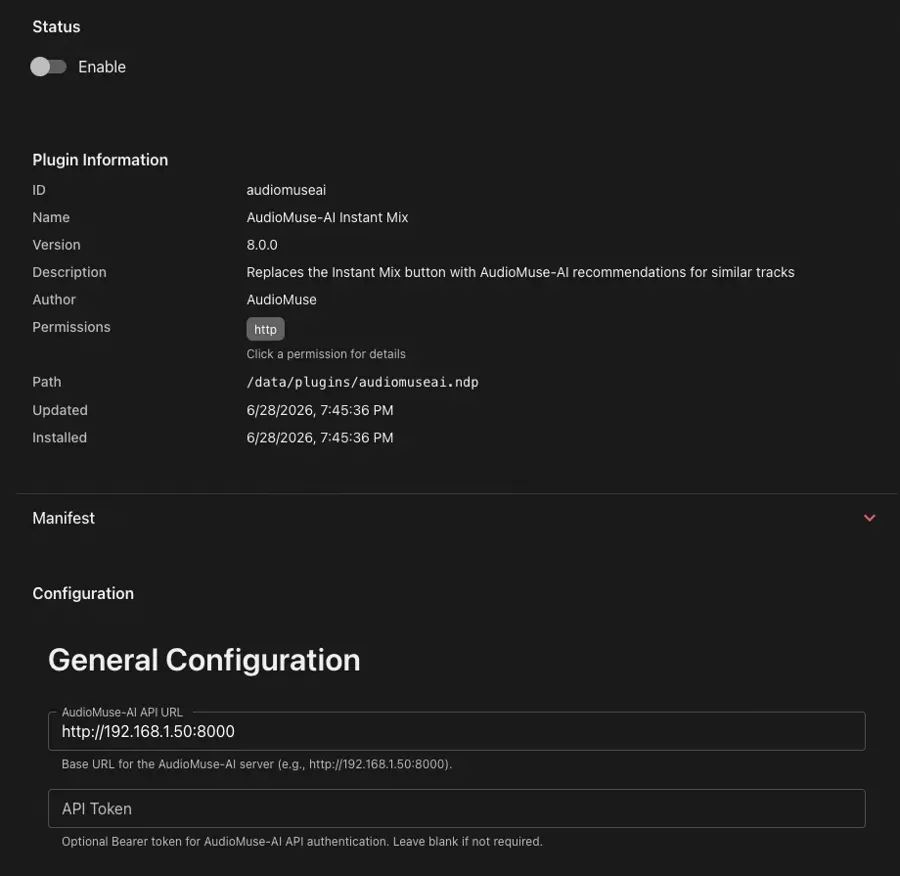
In the Navidrome web UI, go to Settings > Plugins, enable the AudioMuse-AI plugin, and open its settings:
- API URL: the address where Navidrome can reach the AudioMuse-AI core app, for example
http://192.168.1.50:8000. Use a host and port the Navidrome container can actually reach — notlocalhost, unless both run in the same network namespace. - API token: the same token you set in the Setup Wizard in Step 1.
plugin command reference.Verify it works
Use Instant Mix on any song in the Navidrome web UI — it should build a queue of similar songs. You can also watch both sides of the integration in the logs:
docker compose logs -f navidrome | grep audiomuseai
On the AudioMuse-AI side, you should see API calls arriving each time you trigger Instant Mix or a similar-songs request.
Using it
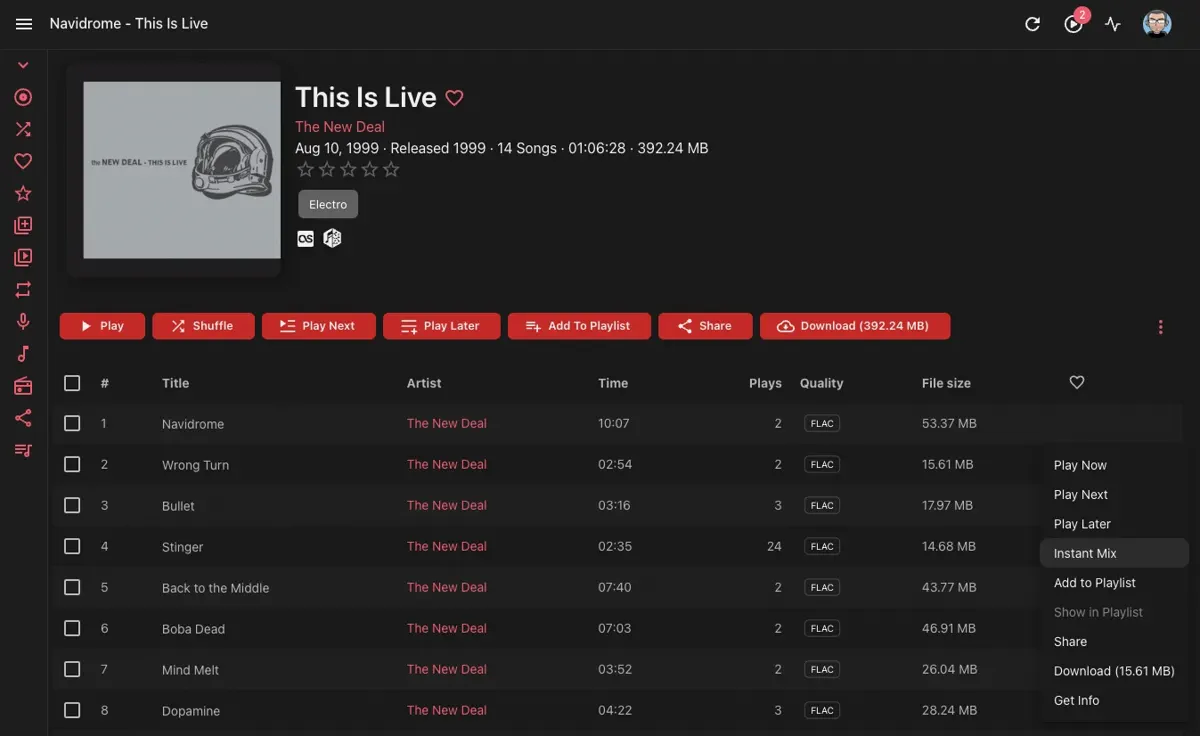
- Web UI: open a song’s context menu (the three-dots button) and select Instant Mix. This requires
EnableExternalServicesto be on (the default).
- Subsonic clients: similar songs and artist radio work automatically through the standard
getSimilarSongs/getSimilarSongs2endpoints, and related/similar artists throughgetArtistInfo/getArtistInfo2— all now answered by AudioMuse-AI’s sonic analysis instead of external metadata services.
OpenSubsonic sonicSimilarity extension
With the plugin active, Navidrome advertises the sonicSimilarity OpenSubsonic extension via getOpenSubsonicExtensions, adding two endpoints that clients can use directly:
getSonicSimilarTracks: returns the tracks most sonically similar to a given song (id), with a similarity score for each match.findSonicPath: builds a smooth “path” of songs from a start song to an end song (startSongId,endSongId), where each step is sonically close to the previous one — useful for gradual mood or genre transitions.
When no plugin providing sonic similarity is loaded, the extension is not advertised and these endpoints return a 404 error.
Troubleshooting
401 Unauthorizedin the Navidrome log: the API token is missing or wrong. Set the same token in the plugin settings and in the AudioMuse-AI Setup Wizard.- No requests in the AudioMuse-AI log: Navidrome cannot reach the API URL. Check the host, port, and network path, and confirm the URL is reachable from inside the Navidrome container.
- Empty or poor results: the library has not been analyzed yet, or the analysis is incomplete. Run the analysis in AudioMuse-AI and wait for it to finish.
- Odd errors in general: update Navidrome, the plugin, and the AudioMuse-AI core to their latest versions. Most issues come from one of the three being out of date.
For plugin-specific debugging, set Plugins.LogLevel to "debug" — see Checking Logs.
3 - Externalized Authentication
For Beginners
Externalized authentication is a relatively advanced topic. You can check the Quick Start guide for a beginner-friendly introduction.Security Note
Navidrome works out of the box behind a reverse proxy without enabling externalized authentication.
You only need to enable externalized authentication if you want the proxy to handle the authentication. In other cases, enabling the feature without securing the reverse proxy configuration can leave your Navidrome setup vulnerable to impersonation attacks.
Configuration
Externalized authentication is disabled by default. To enable the feature, configure a trusted authentication source (your reverse proxy) with the ExtAuth.TrustedSources option. This option takes a comma-separated list of either:
- An IPv4 or IPv6 range in CIDR notation.
- An
@(at sign) when listening on a UNIX socket (see theAddressoption).
When enabled via the ExtAuth.TrustedSources option, Navidrome validates the requests’ source IP address against the ranges configured in ExtAuth.TrustedSources. If no range matches the address, externalized authentication is not used even if the authenticated user header is present (see below), and falls back to a standard authentication mechanism. For requests received through a UNIX socket, IPs can’t be validated and Navidrome will use the authenticated user header if and only if ExtAuth.TrustedSources contains @.
With externalized authentication enabled, Navidrome gets the username of the authenticated user from incoming requests’ Remote-User HTTP header. The header can be changed via the ExtAuth.UserHeader configuration option.
When using external authentication, you can configure ExtAuth.LogoutURL to redirect users to your authentication provider’s logout endpoint after they log out of Navidrome. This ensures users are fully logged out of both Navidrome and the external auth provider (SSO, OIDC, etc.).
If a user is successfully authenticated by the proxy but does not exist in the Navidrome database, it will be created with a random password. The first user created in a fresh installation (whether through externalized authentication or direct login) will always be an admin user.
You might also be interested in the EnableUserEditing option, which allows disabling the User page that lets users change their Navidrome password.
Sharing endpoint
If you plan to use the Sharing feature, where you can create unauthenticated links to parts of your library, you’ll need to whitelist the /share/* URLs.
Subsonic endpoint
The subsonic endpoint also supports externalized authentication, and will ignore the subsonic authentication parameters (u, p, t and s) if the authenticated user header is present. If the header is absent or has an empty value, Navidrome will fall back to the standard subsonic authentication scheme.
If your reverse proxy does not support the standard subsonic authentication scheme, or if the subsonic clients you want to use don’t support an alternate authentication mechanism also supported by your proxy (such as BasicAuth), you can still configure your proxy to bypass authentication on /rest/* URLs and let Navidrome perform authentication for those requests. In that case, your users will have to update their (initially random) password in Navidrome, to use it with their subsonic client.
Note
Most reverse proxies and authentication services don’t support the subsonic authentication scheme out of the box.
A handful of clients claim to support BasicAuth (e.g. DSub and Symfonium on Android, and play:Sub on iOS), but even then it might not work as you expect (as it is not standardized by the subsonic specification): you will likely need to generate a subsonic error response instead of a proper BasicAuth authentication failure response. Otherwise, some clients might display an unexpected error such as “server unreachable” when the credentials are incorrect, and other clients might refuse to connect altogether even with valid credentials.
Navidrome Web App
The Navidrome web app uses a mix of internal and subsonic APIs, and receives subsonic credentials from the server to use for requests against the subsonic API. As the credentials received from the server likely won’t match those in your dedicated authentication service, you need to handle subsonic requests from the Navidrome web app (identified as the subsonic client NavidromeUI via the c query parameter) in a special way. You can either:
- Ignore the subsonic authentication parameters and authenticate those requests the same way as non-subsonic requests. This relies on the fact that requests to the subsonic API will look the same to the proxy as requests to the internal API (e.g. same session cookies).
- Bypass authentication on your proxy for those requests and let Navidrome handle it. This relies on the fact that the web app receives the subsonic credentials from the server when it loads, and it can load only if the proxy has already authenticated the user.
Note that if you don’t intend to support third-party subsonic clients, you can simply place the subsonic endpoint behind the same protection rule as the rest of the application, i.e. you don’t need any special handling to bypass authentication.
Security
Key Security Principle
When you enable externalized authentication by configuring trusted sources, you must ensure that all the trusted sources are configured to:
- Not let untrusted clients set the user header themselves (i.e. remove the header if they do).
- Not set the header if the request is not authenticated (e.g. when the authentication is bypassed for the subsonic endpoints).
Make sure to check the externalized authentication section in the dedicated Security Considerations page.
Examples
For the examples below, it is assumed that you are familiar with the various products in use, i.e. reverse proxy, authentication service but also Navidrome.
The examples focus on the integration between the products, and provide configuration snippets stripped down to the relevant parts, which you can adapt to the specifics of your deployment.
Caddy with forward_auth
In this example, Navidrome is behind the Caddy reverse proxy, and Authentik is used to authenticate requests, with the help of Caddy’s forward_auth middleware.
Caddyfile excerpt stripped down to the relevant parts:
example.com

# Remove any client-supplied user header
request_header -Remote-User

reverse_proxy /outpost.goauthentik.io/* http://authentik:9000

@protected not path /share/* /rest/*
forward_auth @protected http://authentik:9000 {
  uri /outpost.goauthentik.io/auth/caddy
  copy_headers X-Authentik-Username>Remote-User
}

# Authentik uses the Authorization header if present, so should be able to
# authenticate subsonic clients that support BasicAuth. Requests from the
# Navidrome Web App will be authenticated via the existing session cookie.
# If you want to have Navidrome authenticate subsonic requests, remove this
# forward_auth block.
@subsonic path /rest/*
forward_auth @subsonic http://authentik:9000 {
  uri /outpost.goauthentik.io/auth/caddy
  copy_headers X-Authentik-Username>Remote-User

  # Some clients that claim to support basicauth still expect a subsonic
  # response in case of authentication failure instead of a proper basicauth
  # response.
  @error status 1xx 3xx 4xx 5xx
  handle_response @error {
    respond <<SUBSONICERR
      <subsonic-response xmlns="http://subsonic.org/restapi" status="failed" version="1.16.1" type="proxy-auth" serverVersion="n/a" openSubsonic="true">
        <error code="40" message="Invalid credentials or unsupported client"></error>
      </subsonic-response>
      SUBSONICERR 200
  }
}

reverse_proxy navidrome:4533
Note that if you want to whitelist the unprotected paths as part of your Authentik configuration instead of doing it in Caddy, the copy_headers subdirective won’t work as expected: Authentik won’t set the X-Authentik-Username header for whitelisted paths, but Caddy will still copy the header with an incorrect value. In order to make it work, you need a workaround:
forward_auth http://authentik:9000 {
  uri /outpost.goauthentik.io/auth/caddy
  # copy_headers subdirective removed
}

# Only set the Remote-User header if the request was actually authentified (user
# header set by Authentik), as opposed to whitelisted (user header not set).
@hasUsername `{http.reverse_proxy.header.X-Authentik-Username} != null`
request_header @hasUsername Remote-User {http.reverse_proxy.header.X-Authentik-Username}
Traefik with ForwardAuth
In this example, Navidrome is behind the Traefik reverse proxy, and Authelia is used to authenticate requests, with the help of Traefik’s ForwardAuth middleware. Each service has its own subdomain. Docker Compose is used to deploy the whole thing.
The error response rewriting for subsonic authentication failure is not implemented, which means that subsonic clients are expected to handle correctly BasicAuth error responses (HTTP 401 with WWW-Authenticate header).
docker-compose.yml excerpt stripped down to the relevant parts:
services:
  authelia:
    image: authelia/authelia:4.38.8
    labels:
      # The login page and user dashboard need to be reachable from the web
      traefik.http.routers.authelia.rule: Host(`auth.example.com`)
      traefik.http.routers.authelia.entrypoints: https
      # Standard authentication middleware to be used by web services
      traefik.http.middlewares.authelia.forwardauth.address: http://authelia:9091/api/verify?rd=https://auth.example.com/
      traefik.http.middlewares.authelia.forwardauth.authResponseHeaders: Remote-User
      # Basicauth middleware for subsonic clients
      traefik.http.middlewares.authelia-basicauth.forwardauth.address: http://authelia:9091/api/verify?auth=basic
      traefik.http.middlewares.authelia-basicauth.forwardauth.authResponseHeaders: Remote-User
      # Security middleware for the entrypoints
      traefik.http.middlewares.drop-untrusted-auth-headers.headers.customrequestheaders.Remote-User:

  navidrome:
    image: deluan/navidrome:0.52.0
    labels:
      # Default rule which uses Authelia's web-based authentication. If you enable
      # navidrome's Sharing feature, you can configure Authelia to bypass
      # authentication for /share/* URLs, so you don't need an extra rule here.
      traefik.http.routers.navidrome.rule: Host(`music.example.com`)
      traefik.http.routers.navidrome.entrypoints: https
      traefik.http.routers.navidrome.middlewares: drop-untrusted-auth-headers@docker,authelia@docker
      # Requests to the subsonic endpoint use the basicauth middleware, unless
      # they come from the Navidrome Web App ("NavidromeUI" subsonic client), in
      # which case the default authelia middleware is used.
      traefik.http.routers.navidrome-subsonic.rule: Host(`music.example.com`) && PathPrefix(`/rest/`) && !Query(`c`, `NavidromeUI`)
      traefik.http.routers.navidrome-subsonic.entrypoints: https
      traefik.http.routers.navidrome-subsonic.middlewares: drop-untrusted-auth-headers@docker,authelia-basicauth@docker
    environment:
      # Navidrome does not resolve hostnames in this option, and by default
      # traefik will get assigned an IP address dynamically, so all IPs must be
      # trusted.
      # This means that any other service in the same docker network can make
      # requests to navidrome, and easily impersonate an admin.
      # If you assign a static IP to your traefik service, configure it here.
      ND_EXTAUTH_TRUSTEDSOURCES: 0.0.0.0/0
      # Since authentication is entirely handled by Authelia, users don't need to
      # manage their password in Navidrome anymore.
      ND_ENABLEUSEREDITING: false
We recommended applying the drop-untrusted-auth-headers on the entrypoints if possible (instead of configuring it on each service individually as shown here).
If you want to add support for the subsonic authentication scheme in order to support all subsonic clients, you can have a look at the Traefik plugin BasicAuth adapter for Subsonic which transforms subsonic authentication parameters into a BasicAuth header that Authelia can handle, and performs the error response rewriting.
4 - Monitoring Navidrome
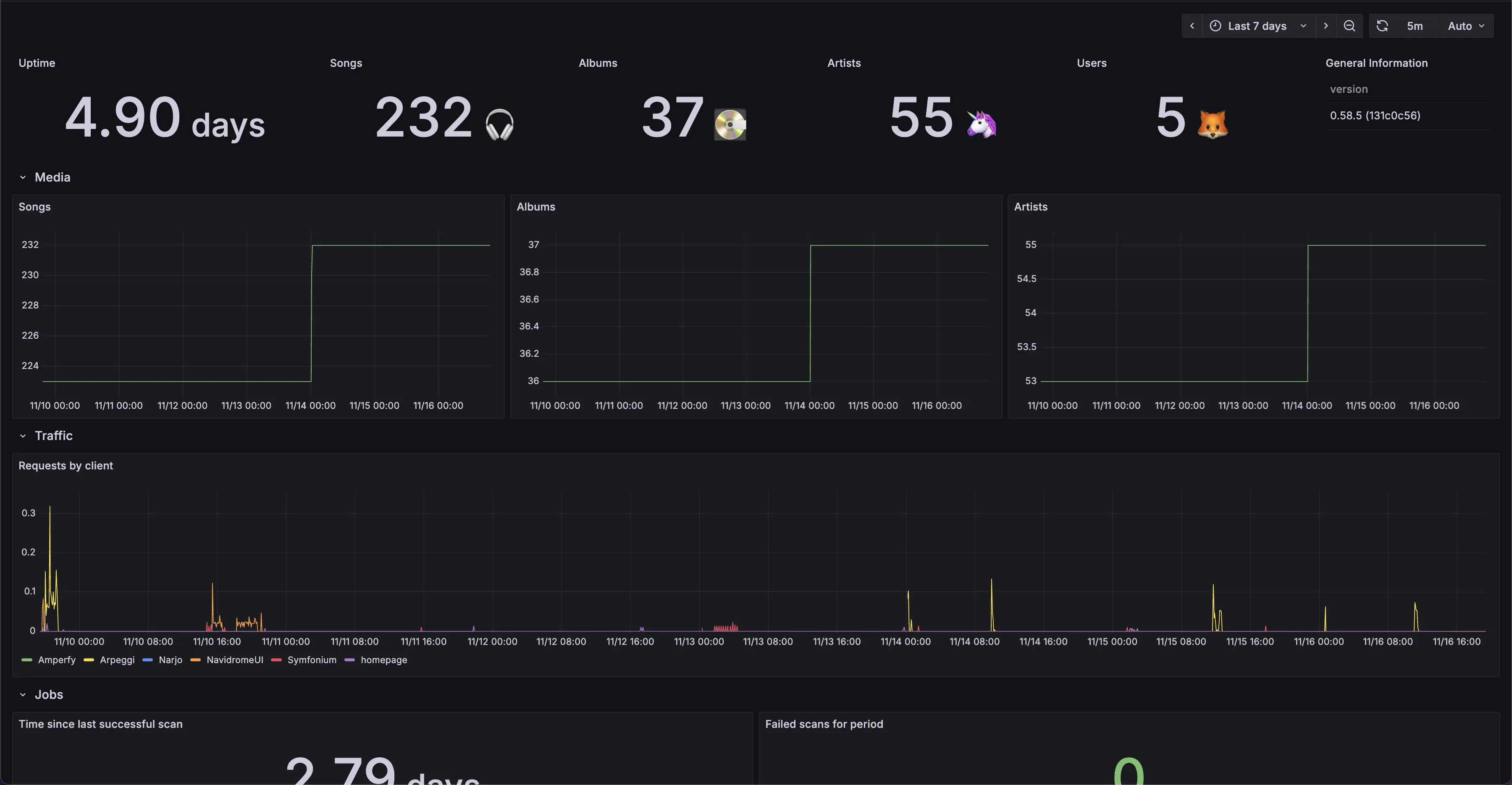
Currently, Navidrome supports monitoring and alerting using Prometheus/OpenMetrics standard. Example Grafana dashboard:
Overview
Prometheus is a service that takes data from a metrics endpoint and collects it. Grafana is a dashboard service that can take data from a Prometheus server and display it. Navidrome has an easy way to create a metrics endpoint that Prometheus can use. Once you point Prometheus to this endpoint, and Grafana to your Prometheus server, you will be able to monitor your Navidrome instance.
The easiest way to do this is using docker-compose and Docker networks.
Configuration
You need to set ND_PROMETHEUS_ENABLED to enable Prometheus metrics endpoint.
Setting custom ND_PROMETHEUS_METRICSPATH is highly recommended if your Navidrome
instance is publicly available.
Minimal docker compose example file with metrics enabled, and Prometheus and Grafana containers:
version: '3'
services:
  navidrome:
    image: deluan/navidrome
    user: 1000:1000 # should be owner of volumes
    ports:
      - "4533:4533"
    environment:
      ND_PROMETHEUS_ENABLED: "true"
      ND_PROMETHEUS_METRICSPATH: "/metrics_SOME_SECRET_KEY"
    volumes:
      - "./data:/data"
      - "./music:/music"
    networks:
      - metrics-network
  prometheus:
    image: prom/prometheus
    container_name: prometheus
    command:
      - '--config.file=/prometheus/prometheus.yml'
    ports:
      - 9090:9090
    restart: unless-stopped
    volumes:
      - ./etc/prometheus:/etc/prometheus
      - ./prometheus:/prometheus
    networks:
      - metrics-network
  grafana:
    image: grafana/grafana
    container_name: grafana
    ports:
      - 3000:3000
    restart: unless-stopped
    environment:
      - GF_SERVER_ROOT_URL=<your external grafana endpoint here>
      - GF_SERVER_SERVE_FROM_SUB_PATH=false # if your external grafana endpoint has a subpath or not
    volumes:
      - ./etc/grafana:/etc/grafana/provisioning/datasources
    networks:
      - metrics-network
networks:
  metrics-network:
    driver: bridge
Example prometheus.yml config to parse this instance:
global:
  scrape_interval: 10s
scrape_configs:
  - job_name: 'navidrome'
    metrics_path: /metrics_SOME_SECRET_KEY
    scheme: http
    static_configs:
      - targets: ['navidrome:4533']
Dashboard
Grafana dashboards are available here: #24397 #18038.
Simple to install but fully fledged Grafana docker compose configuration can be found here.