AudioMuse-AI
AudioMuse-AI is a self-hosted service that analyzes the actual audio content of your music library — tempo, timbre, energy, and other sonic characteristics — and uses that analysis to find songs that sound similar. Unlike the external metadata agents, which rely on third-party databases like Last.fm or Deezer, AudioMuse-AI works entirely from your own files, so it can find matches even for obscure or unreleased music.
It integrates with Navidrome through a plugin, the AudioMuse-AI-NV-plugin. Once set up, you get:
- Instant Mix in the Navidrome web UI: open any song’s context menu and build a queue of sonically similar tracks
- Similar songs and similar artists in Subsonic clients such as Symfonium, Feishin, Substreamer, Tempus, and Wavio, through the standard
getSimilarSongs/getSimilarSongs2(songs/radio) andgetArtistInfo/getArtistInfo2(related artists) endpoints - The OpenSubsonic
sonicSimilarityextension, which clients can use to fetch sonic matches and build song-to-song transitions
Third-Party Project
AudioMuse-AI and its Navidrome plugin are developed and maintained by the community, not by the Navidrome team. Review their documentation and source code before installing, and report issues with them in their own repositories.Requirements
- The latest versions of all three components, kept aligned: Navidrome, the AudioMuse-AI core, and the Navidrome plugin. A version mismatch is the most common cause of problems, so always update the three together.
- Docker and Docker Compose for AudioMuse-AI (or one of its native builds).
- Navidrome and AudioMuse-AI must be able to reach each other over the network.
Step 1 — Deploy AudioMuse-AI
AudioMuse-AI runs as a small stack: a web app, a worker, PostgreSQL, and Redis. The provided Docker Compose file wires all of this for you — normally you only set the database credentials and timezone in its .env file. Follow the deployment instructions in the AudioMuse-AI documentation. If you prefer not to use Docker, there are native builds for Linux, macOS, and Windows on their releases page.
Once the stack is running, open the AudioMuse-AI web interface (port 8000 by default). The Setup Wizard appears on first start:
- Pick Navidrome as the media server and enter your Navidrome URL, user, and password.
- In the AudioMuse-AI authentication section, set a username, password, and API token. You will need this token later to configure the plugin.
- Save and finish the wizard.
Then run a first analysis before anything else: AudioMuse-AI can only find similar songs after it has analyzed them. Start a new analysis from its main page and let it finish — this can take a while on a large library. When it is done, confirm it works by using Similar Song on any track in the AudioMuse-AI UI.
Step 2 — Configure Navidrome
Make sure the plugin system is enabled (it is by default), and add audiomuseai to your Agents list. The order matters: Navidrome uses the first agent that supports sonic similarity, so keep audiomuseai first.
services:
  navidrome:
    image: deluan/navidrome:latest
    ports:
      - "4533:4533"
    environment:
      - ND_PLUGINS_ENABLED=true
      - ND_PLUGINS_AUTORELOAD=true
      - ND_AGENTS=audiomuseai,lastfm,deezer
    volumes:
      - ./data:/data
      - /path/to/music:/music:ro
Step 3 — Install the plugin
- Download the latest
audiomuseai.ndpfile from the plugin releases page. - Copy it into your Navidrome plugins folder (
<DataFolder>/pluginsby default). - Restart Navidrome, or click “Rescan” in the Plugins section of the web UI (with
Plugins.AutoReloadenabled, the plugin is picked up automatically).
See Installing Plugins for details on the general installation flow.
Step 4 — Configure the plugin
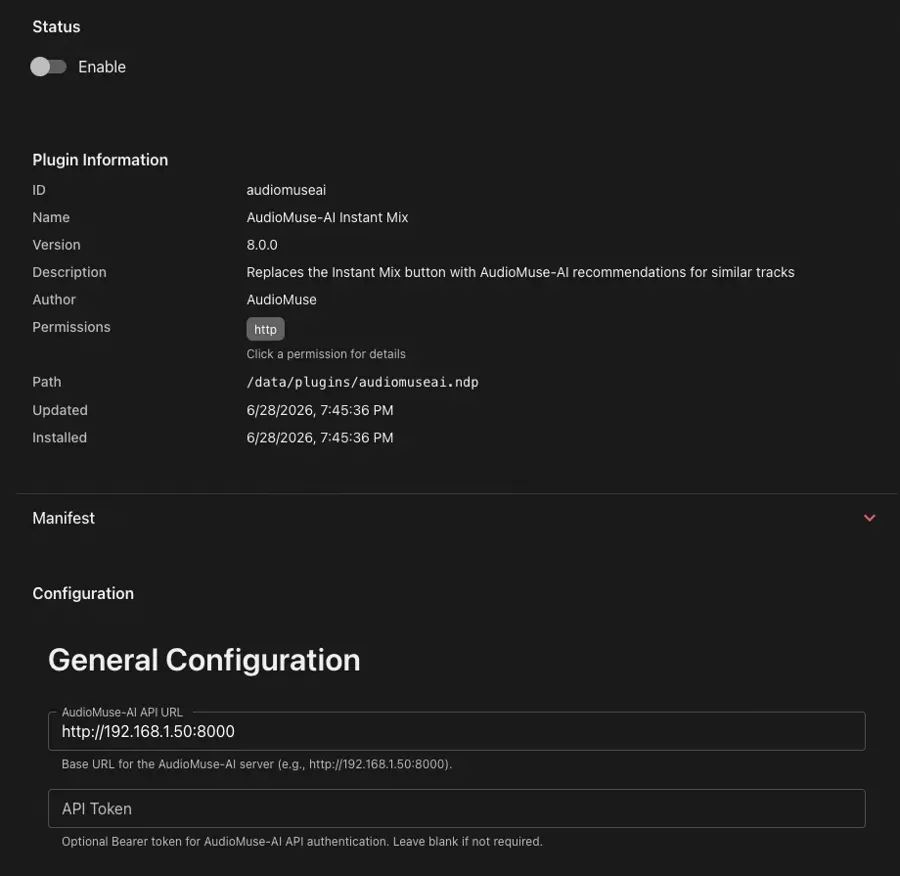
In the Navidrome web UI, go to Settings > Plugins, enable the AudioMuse-AI plugin, and open its settings:
- API URL: the address where Navidrome can reach the AudioMuse-AI core app, for example
http://192.168.1.50:8000. Use a host and port the Navidrome container can actually reach — notlocalhost, unless both run in the same network namespace. - API token: the same token you set in the Setup Wizard in Step 1.
plugin command reference.Verify it works
Use Instant Mix on any song in the Navidrome web UI — it should build a queue of similar songs. You can also watch both sides of the integration in the logs:
docker compose logs -f navidrome | grep audiomuseai
On the AudioMuse-AI side, you should see API calls arriving each time you trigger Instant Mix or a similar-songs request.
Using it
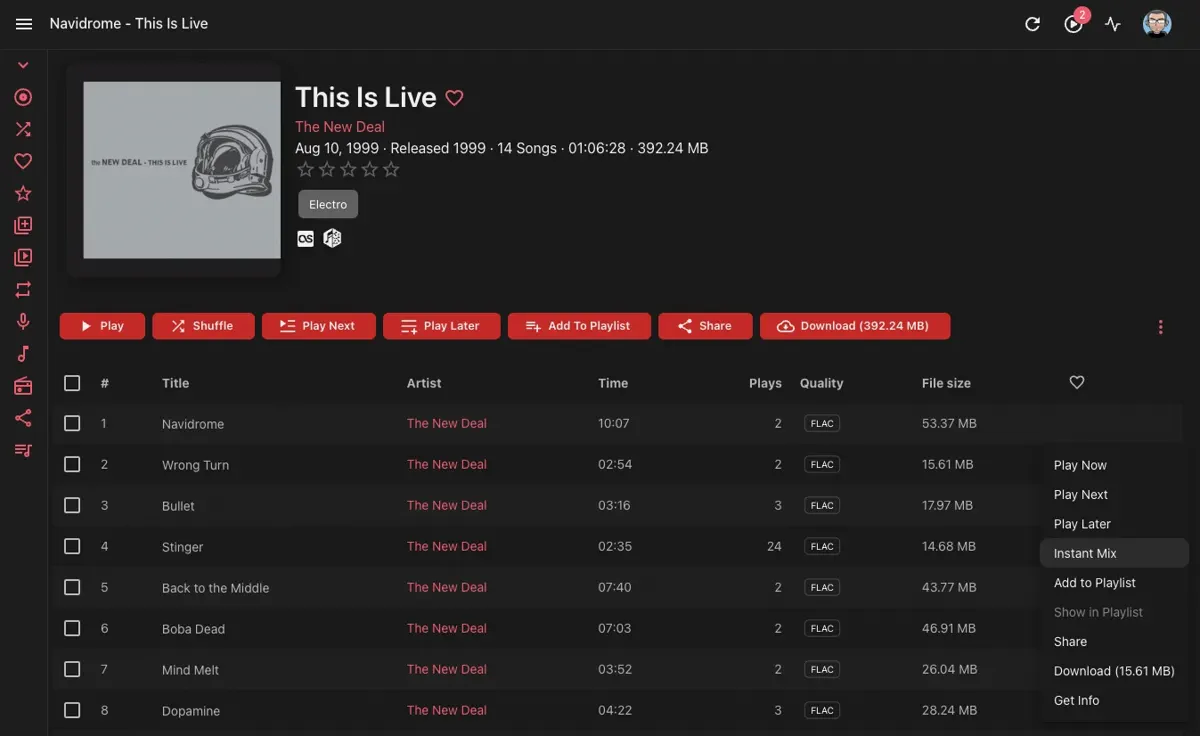
- Web UI: open a song’s context menu (the three-dots button) and select Instant Mix. This requires
EnableExternalServicesto be on (the default).
- Subsonic clients: similar songs and artist radio work automatically through the standard
getSimilarSongs/getSimilarSongs2endpoints, and related/similar artists throughgetArtistInfo/getArtistInfo2— all now answered by AudioMuse-AI’s sonic analysis instead of external metadata services.
OpenSubsonic sonicSimilarity extension
With the plugin active, Navidrome advertises the sonicSimilarity OpenSubsonic extension via getOpenSubsonicExtensions, adding two endpoints that clients can use directly:
getSonicSimilarTracks: returns the tracks most sonically similar to a given song (id), with a similarity score for each match.findSonicPath: builds a smooth “path” of songs from a start song to an end song (startSongId,endSongId), where each step is sonically close to the previous one — useful for gradual mood or genre transitions.
When no plugin providing sonic similarity is loaded, the extension is not advertised and these endpoints return a 404 error.
Troubleshooting
401 Unauthorizedin the Navidrome log: the API token is missing or wrong. Set the same token in the plugin settings and in the AudioMuse-AI Setup Wizard.- No requests in the AudioMuse-AI log: Navidrome cannot reach the API URL. Check the host, port, and network path, and confirm the URL is reachable from inside the Navidrome container.
- Empty or poor results: the library has not been analyzed yet, or the analysis is incomplete. Run the analysis in AudioMuse-AI and wait for it to finish.
- Odd errors in general: update Navidrome, the plugin, and the AudioMuse-AI core to their latest versions. Most issues come from one of the three being out of date.
For plugin-specific debugging, set Plugins.LogLevel to "debug" — see Checking Logs.
Feedback
Was this page helpful?
Glad to hear it! Please tell us how we can make this documentation even better.
Sorry to hear that. Please tell us how we can improve this documentation.